We bring you useful information and news from Hive! Greetings from Hive Platform! 😊
Not long ago, playing games on a PC at your desk was the norm.
But with the rise of smartphones, the market quickly shifted to mobile,
and short, casual gameplay became the mainstream.
In recent years, however, we’ve seen mobile-only games expanding into the PC space.
That’s because more players want to enjoy their games on bigger screens and for longer sessions.
If you’re considering expanding an active mobile game to PC,
or planning to launch a new title on both mobile and PC, this one’s for you.
Today’s topic: Launching a PC app with Hive’s Crossplay Launcher. |
|
|
🎮 Boundary-Free Play by Hive! |
|
|
🖥️ What is the Crossplay Launcher? |
|
|
The Crossplay Launcher is a dedicated tool that makes installing, running, and updating your game app on PC smooth and seamless.
Developers and operators can handle everything from build upload to distribution and patching through the Hive Console,
while players simply launch the game and always enjoy the latest version for a comfortable play experience
|
|
|
Shall we take a look at the process of launching a PC app? |
|
|
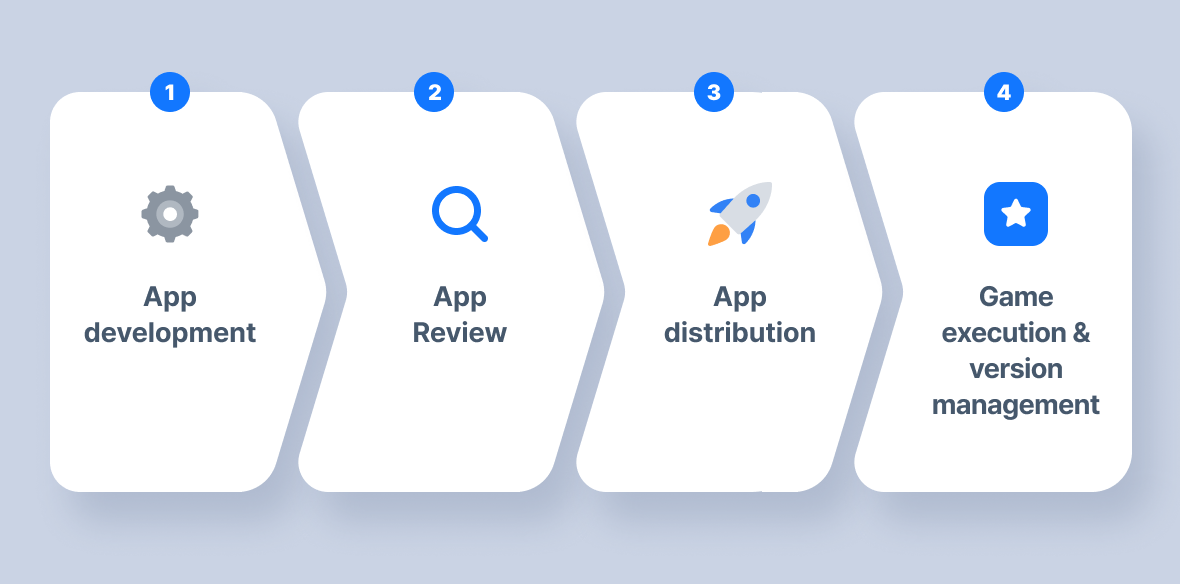
Step 1. ⚙️App Development |
|
|
Develop the app using the Hive SDK Windows Unity or Unreal version.
If you’re already servicing your mobile game with the Hive SDK, you can quickly develop the PC version with the same interface. |
|
|
Upload the game files to the CDN using Hive’s Uploader tool, then change the file status to ‘Review.’
Once updated, you can run a final playtest under live conditions using the designated ‘Review IP.’
Hive provides a convenient environment for uploading and testing apps, so you can thoroughly check the game’s quality before release. |
|
|
Step 3. 🚀 App Distribution |
|
|
Once the review is complete, set the release date and schedule the app for distribution—it will launch automatically.
Hive minimizes the operational burden with automated distribution, ensuring a fast and stable release. |
|
|
Step 4. ⭐ Game Launch and Version Management |
|
|
Players can run the PC version directly from your website, or start instantly via the community’s ‘Play on PC’ button.
The Crossplay Launcher supports periodic updates, so users always play the latest version of your app. |
|
|
“Launch your PC app in just 4 steps! 🎉”
Now, players can jump right in through the Crossplay Launcher
and enjoy a brand-new play experience on PC. |
|
|
🎯Why launch your PC app with Hive? |
|
|
☑️ Easy distribution without building extra infrastructure
No need to set up your own systems—just upload and distribute builds with Hive’s features. |
|
|
☑️From install to launch, fully automated
With a single click of [Start Game], the launcher installation and game startup run automatically. |
|
|
☑️ Optimized for flexible gaming environments
Works seamlessly not only on desktops but also on touchscreen portable gaming PCs (UMPCs). |
|
|
☑️ More flexible monetization with PG payment
Integrate PG payment to reduce marketplace fees and boost revenue. |
|
|
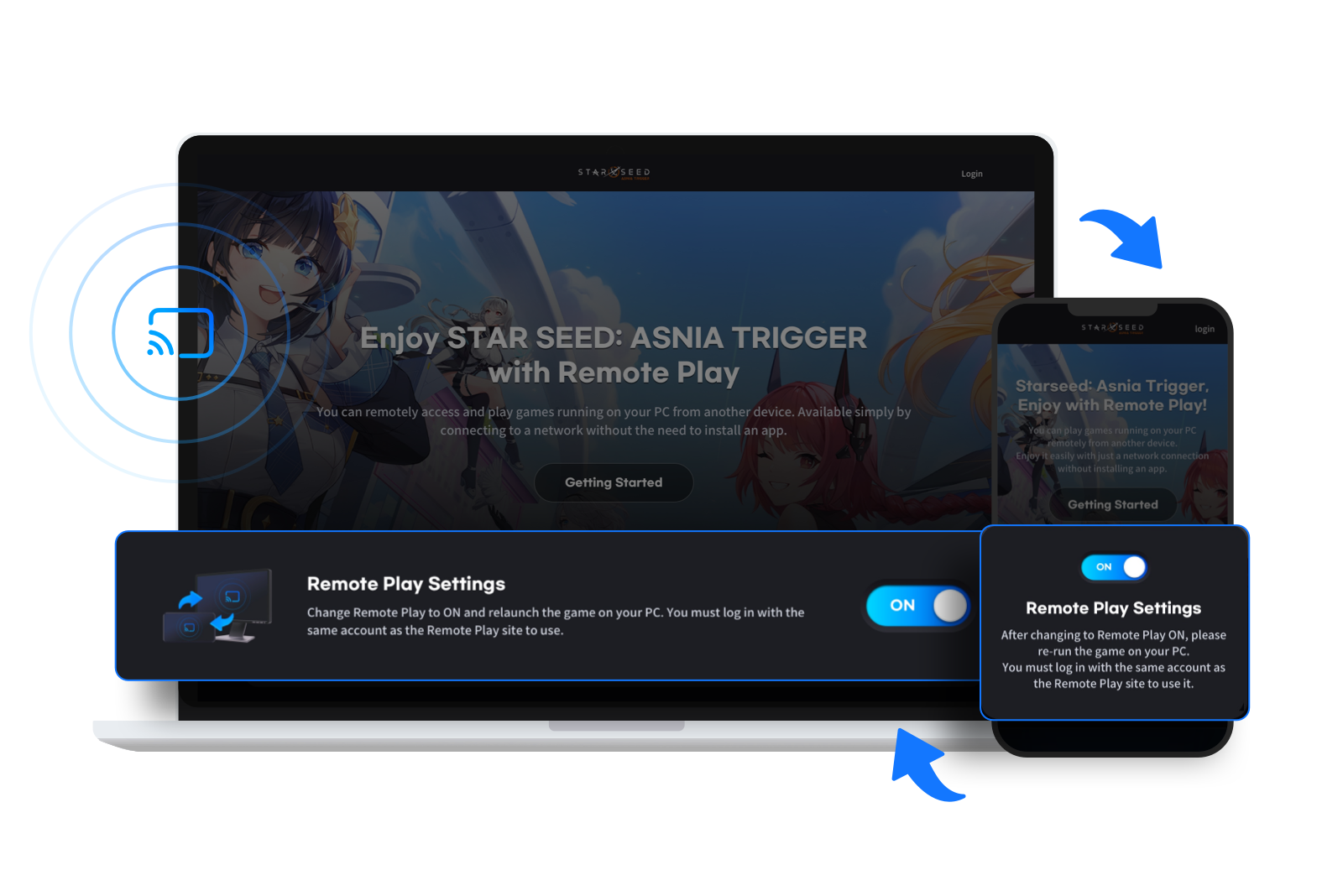
☑️ Seamless play anytime, anywhere
With Hive Remote Play, users can access the game remotely and extend their playtime wherever they are. |
|
|
Beyond boundaries, endless fun ♾️
Discover seamless gaming across devices with Hive Remote Play. |
|
|
Com2us Platform
cs-platform@com2us.com
131, Gasan digital 1-ro, Geumcheon-gu, Seoul, Korea
© Com2uS Platform Corp. All Rights Reserved.
This email is for informational purposes to guide service usage.
If you no longer wish to receive emails, please click here to unsubscribe.
|
|
|
|